


What Gaming Mode in Antivirus Software Actually Changes
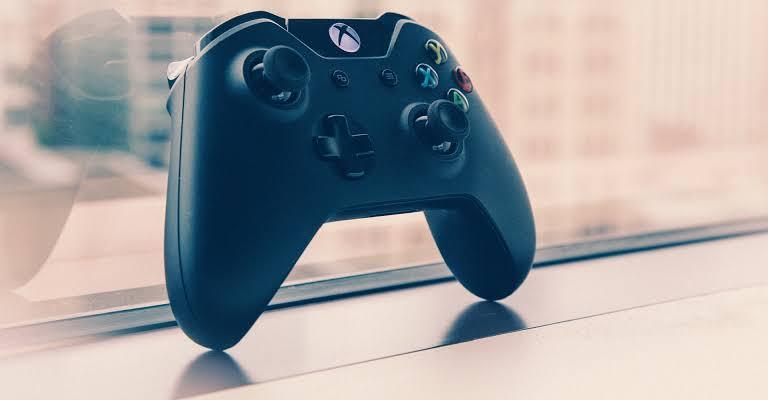
A notification appearing over a game is easy to notice. A scan quietly competing for storage is less obvious. Antivirus gaming modes can address either kind of interruption, depending on the product, but the name alone does not explain what happens. Two security applications may use similar labels for quite different settings. Before enabling the feature, identify the problem you want to solve. Fewer notifications, deferred maintenance, and lower background activity are separate outcomes. Understanding those differences helps you judge whether the mode improves your experience and whether postponed work still happens when the gaming session ends.
Start With the Product's Definition
Read the description for the version you actually have installed. Look for the activities the mode changes, the conditions that activate it, and how normal behavior resumes. Marketing language about uninterrupted play may summarize several controls without explaining their individual effects. Keep those documented limits beside your test notes for an honest comparison. When comparing the best antivirus for gaming pc 2026, treat gaming mode as a feature to examine rather than proof of performance. A current support document is more useful than assuming the word gaming means the software allocates extra resources to your game. Some modes primarily control interruptions, while others also postpone specified background tasks.
Separate Notifications From Protection
Silencing an ordinary notification changes what appears on the screen. It does not necessarily change the underlying security inspection. A product can continue checking activity while reducing messages that would interrupt a presentation, movie, or game. Check how urgent alerts are handled. You need a way to understand a blocked download or other event that requires attention, even if routine status messages are suppressed. Review the security history after testing the mode so a quiet session is not mistaken for proof that nothing relevant occurred during play.
Understand Deferred Background Work
Some products postpone specified maintenance activities when a supported game or full screen application is detected. The exact list matters. Deferring one task does not establish that every update, scan, or background process has stopped, nor that all activity shown under the vendor's name belongs to the same component. Find out when postponed activities resume. A mode that reduces interruptions during a match can still produce noticeable activity immediately afterward. Leave a suitable maintenance period when practical and check task completion. Repeatedly closing the computer after every session can undermine a schedule that depends on later idle time.
Test Automatic Detection
Automatic activation may depend on full screen detection, an application list, or another documented signal. Your setup might use borderless windows, multiple displays, streaming software, and frequent switching between applications. Test the conditions you use instead of assuming that a demonstration with one full screen game covers them. Check the mode indicator before and after launching the game, where the product provides one. Switch to another application and exit the game normally. Confirm that the mode starts and stops as expected. If detection is inconsistent, consult the supported configuration options before relying on it for an important session.
Keep Performance Expectations Specific
A gaming antivirus feature can be useful without producing a measurable increase in average FPS. Avoided notifications may improve concentration, and rescheduled maintenance may reduce interruptions during a particular workload. Neither outcome proves that every game will run faster on every computer. If you are investigating stutter, compare repeated runs with the same game settings and background conditions. Observe storage, processor, and memory activity alongside frame timing. A launcher update or recording process may explain the disruption more directly than the gaming mode, especially when several activities begin at the same time.
Check the Rest of the Security Suite
A suite may include backup, cleanup, VPN, browser, or monitoring components with their own settings. Gaming mode may not control all of them. Read which components are covered and check whether another scheduled task is creating the interruption you originally wanted to prevent. Keep useful security functions configured deliberately. Removing every feature or disabling protection to obtain a quieter session avoids the actual diagnostic question. Prefer a supported adjustment aimed at the demonstrated source of interference, and make one change at a time so you can assess its effect.
Confirm the Return to Normal
After testing, inspect whether notifications and deferred tasks behave normally again. Record any manual timer or application rule you enabled so it can be reviewed later. A forgotten setting can affect ordinary desktop work long after the game has closed. The best configuration has an understandable boundary: fewer unnecessary interruptions during play, continued protection according to the product's documented behavior, and completed maintenance afterward. Once you know what your antivirus changes and what it leaves to separate controls, gaming mode becomes a predictable convenience rather than a vague promise about speed.

 English
 Arabic
 French
 Spanish
 Portuguese
 Turkish
 Dutch
Dutch
 Italiano
 Russian
 Romaian
 Portuguese (Brazil)
 Greek
Greek